Adjusting unit height to remove Z-fighting
Z-fighting can result from two building parts that overlap. You can use the BuildingGen Packager panel to resolve this issue.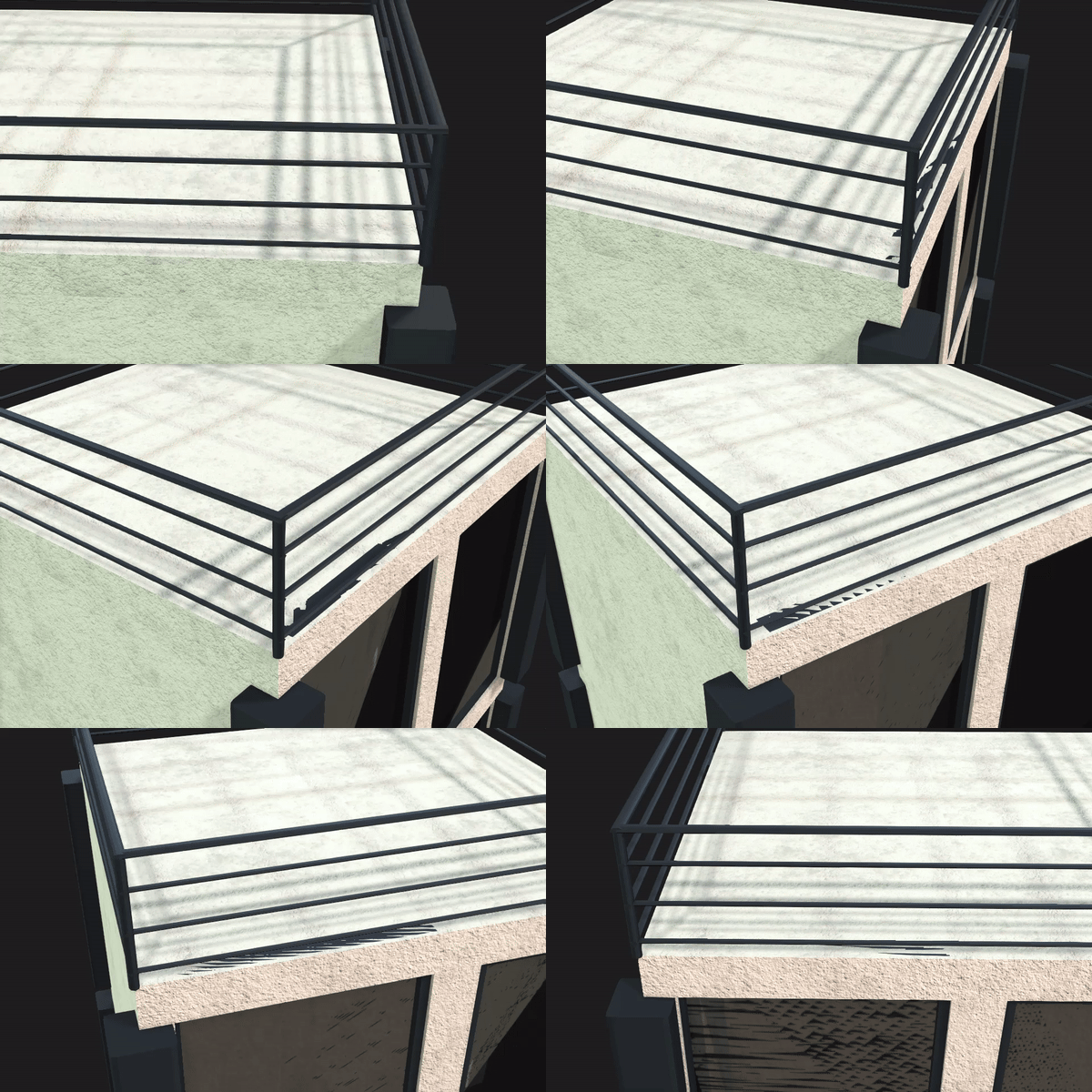
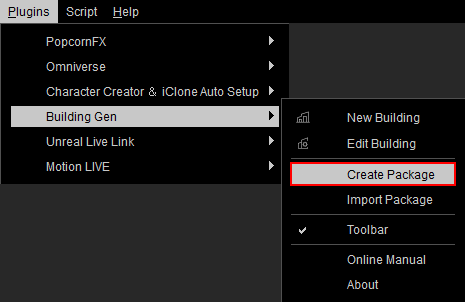
- Open the BuildingGen Packager panel by clicking the Create Package icon in the toolbar, or navigate to Plugins > BuildingGen > Create Package.

- Click the Load iBuildingConfig icon to load your iBuildingConfig file.

-
Under the Parts section, identify the problematic parts and adjust their unit heights to remove Z-fighting.
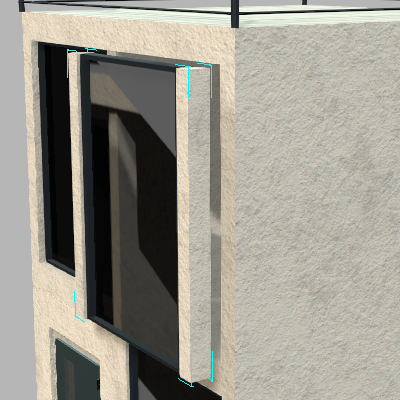
In this case, the floor and wall meshes are overlapping to a degree of causing Z-fighting. By increasing the unit height of the walls, a gap is created between it and the floor mesh, which effectively removes the visual artifact..png)
 Note:
Note:When adjusting the unit height settings for walls and pillars, ensure that all walls and pillars within the same level have consistent height settings. Varying unit height settings within the same building level can lead to noticeable gaps between different levels.
The wall and floor textures are no longer in conflict: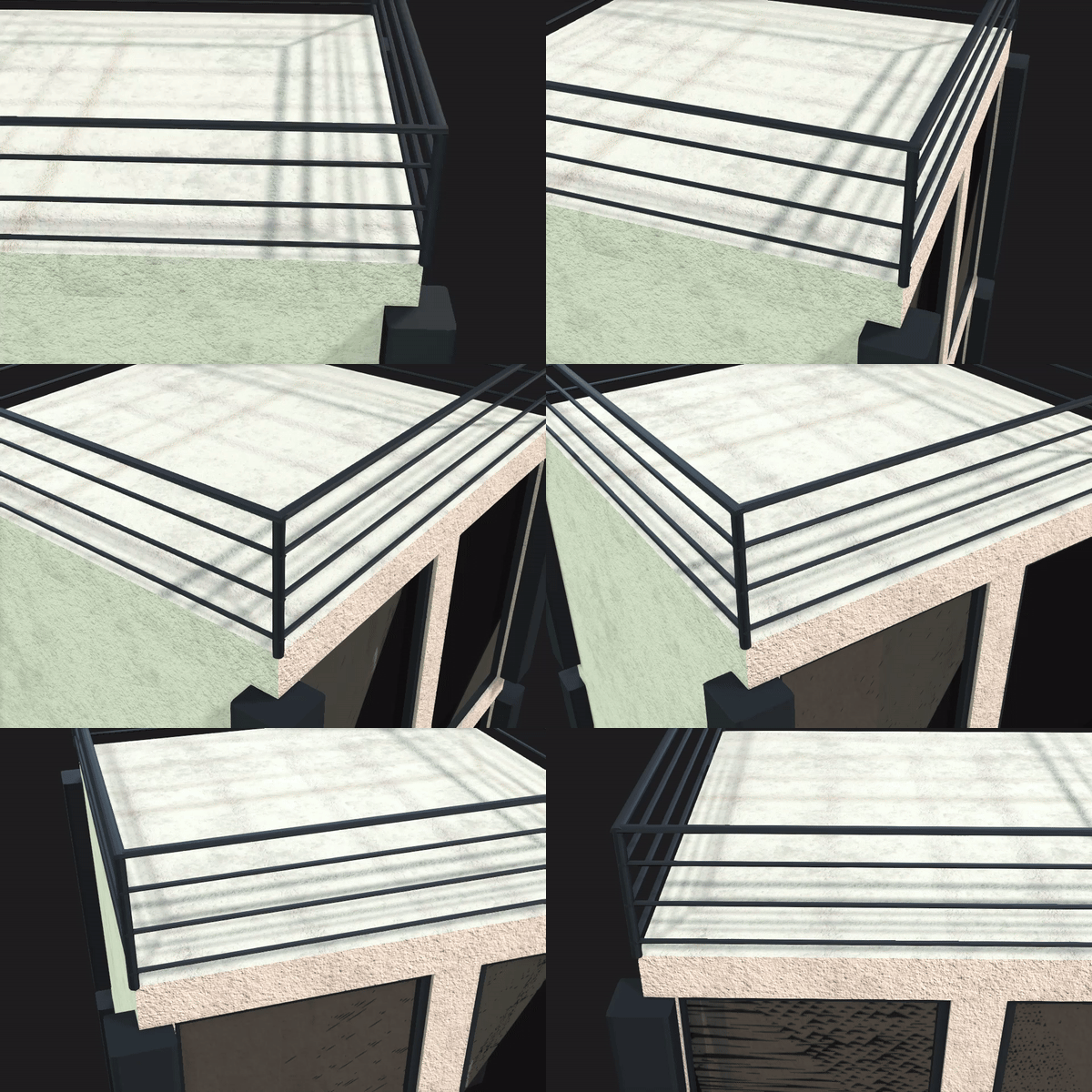
Inspecting the correction
You will need to export the updated building style as an iBuildingConfig in order to inspect the corrections and ensure that Z-fighting is no longer an issue.
- Click the Save iBuildingConfig icon to save the current settings or overwrite the old configuration.

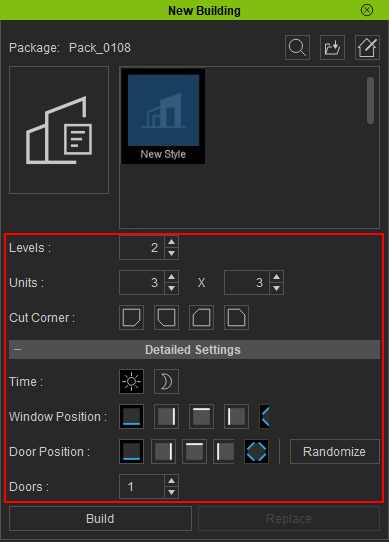
- Open the New Building panel by clicking the New Building icon in the toolbar.

- Click the Load iBuidingConfig icon to import your configuration file.

- Adjust the building to have multiple levels and units in order to properly inspect the building style.
- If the issues persist, return to the BuildingGen Packager panel to finetune the building parts unit height until the issues are completely resolved.
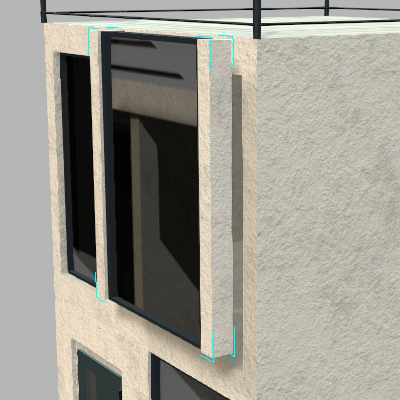
The original wall part without unit height adjustment.
The original wall part with the unit height adjusted.
